 FileMy.Email
An Outlook add-in that files messages and attachments directly into the right SharePoint library. Smart folder suggestions learn your habits, Save on Send catches outgoing mail automatically, and metadata columns fill themselves in.
Starting at $10/mo for 3 users. See pricing
If your team's process for saving Outlook email to SharePoint is "drag the message to a desktop, rename the file, upload it through the browser, then go back and tag the metadata columns" — you're losing minutes per email and people quietly stop doing it. Saved emails end up scattered between someone's PST, a OneDrive, and a SharePoint library that's missing half the thread.
This add-in turns the whole flow into one click, inside the message you're already reading. It learns the folder you use for each contact, fills SharePoint metadata columns from the email headers, and handles attachments without a second upload step. Outgoing mail is covered by Save on Send — pick a destination while composing, then forget about it.
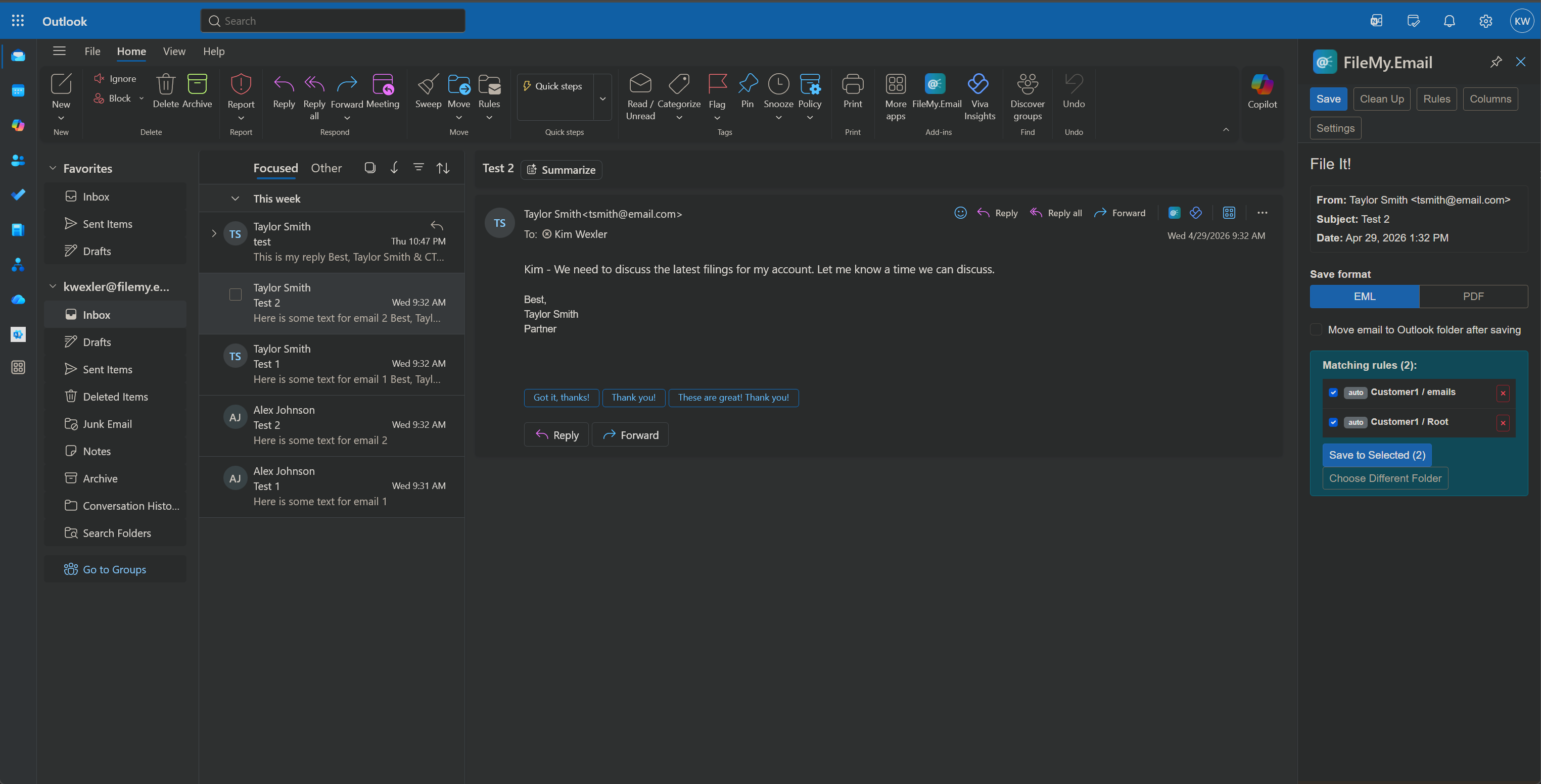
The add-in opens in the side panel. It reads the sender and subject, then surfaces a smart folder suggestion based on past saves.
Accept the suggestion, click a starred favorite, or browse and search any SharePoint site you can access.
The email and its attachments upload directly to SharePoint. Metadata columns are populated. The add-in remembers the choice for next time.
Outgoing mail files itself the second you hit Send. No more "I'll save it later," because later never happens.
Once you save a few emails from a contact, the add-in suggests the same folder automatically — for both replies you write and new mail you receive.
Map SharePoint columns to email fields once. From then on, sender, subject, date, and any custom property are populated on save.
Save attachments alongside the email or in a dedicated subfolder. Filenames follow a template you control.
Run rules across an entire inbox to file the backlog in one pass — useful when onboarding a shared mailbox.
Flip on Auto-Archive before vacation. Mail from senders you've already mapped files itself while you're out — never anything else.
| Approach | What you give up |
|---|---|
| Drag and drop into a SharePoint browser tab | No metadata. No naming convention. Outgoing mail forgotten. Breaks for shared mailboxes. |
| Outlook's native "Save as" to OneDrive | Personal storage only — not shared SharePoint sites. No folder learning. Manual every time. |
| Power Automate flow on a watched folder | Requires an admin to build and maintain. Per-user customization is painful. No interactive folder choice on save. |
| FileMy.Email add-in | $10/month for 3 users. That's it. |
Install the add-in from the Microsoft Office store, open any email, pick a folder in the side panel (or accept the smart suggestion), and click Save. The email and its attachments upload directly to SharePoint with metadata columns filled in.
Yes — turn on Save on Send while composing and pick a destination folder. The email files itself the moment you hit Send.
EML (preserves the full email including headers — Outlook's native format) or PDF (universally readable, good for archives and audits). Set a default in settings, override per save.
Yes. The add-in runs in Outlook desktop, Outlook on the web, and the new Outlook for Windows. Folder rules and learned suggestions sync across all of them.
No. Files transfer directly from Outlook to your SharePoint or OneDrive using your Microsoft 365 credentials. We never read, store, or proxy email content.
Yes. The add-in works inside any mailbox you have access to in Outlook, including shared and delegate mailboxes. Each user's saves count against their own seat.
Starting at $10/mo for 3 users. See pricing · Setup guide