 FileMy.Email
FileMy.Email
An Outlook add-in that files messages and attachments straight into SharePoint or OneDrive — and learns where each one belongs. Smart folder suggestions get better the more you use them, Save on Send files outgoing mail the moment you hit Send, batch inbox cleanup clears the backlog, SharePoint metadata columns fill themselves in, and auto-archive keeps filing while you're out of office.
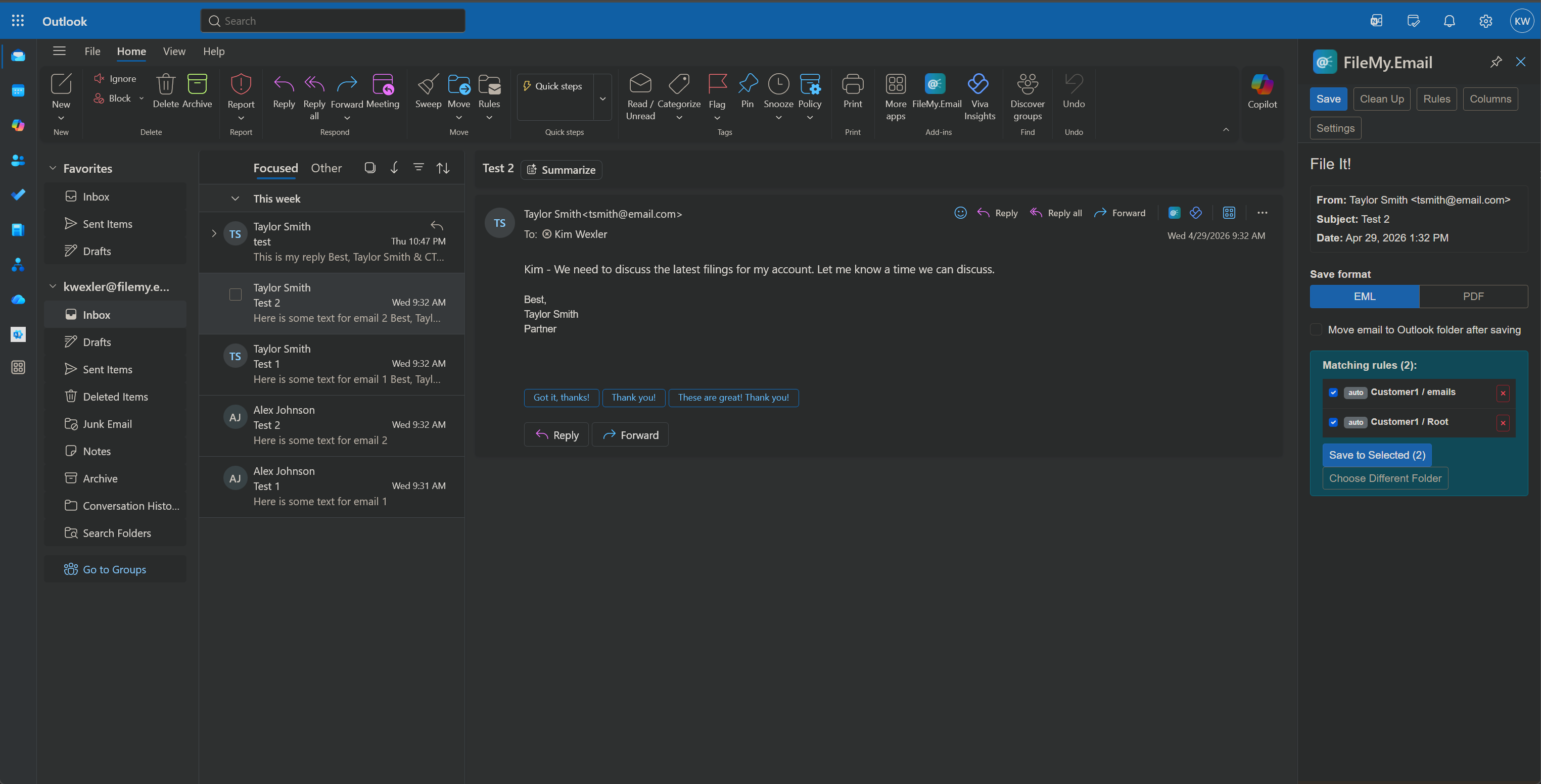
Saving an Outlook email to SharePoint from the add-in panel, without leaving the message.
File emails and attachments to SharePoint or OneDrive without leaving Outlook.
Pick a destination while composing. The email files itself the moment you hit Send.
Save to shared SharePoint libraries for team work, or your personal OneDrive for individual reference.
Learns which folders you use for which contacts — incoming and outgoing — and suggests them automatically.
Scan unfiled emails, preview matches, and batch-save them all at once.
Map email metadata to SharePoint library columns automatically.
Choose the format that works best for your team.
Star your most-used folders for instant access.
Never accidentally save the same email twice.
Save attachments in a separate subfolder alongside the email.
Create a SharePoint folder from the task pane and file straight into it — no trip to SharePoint first.
Every save gives you the SharePoint link — open it, or copy it straight into a reply.
Outlook desktop, web, iPhone and Android, across Microsoft 365 tenants.
Out of office? Matching emails file themselves the moment they arrive. Toggle it on for vacation, or always-on for hands-off filing.
Three steps. No training required.
The add-in panel appears alongside your message — whether you're reading mail or writing it.
Accept the smart suggestion, or browse and search your SharePoint libraries or OneDrive.
Click Save, or just hit Send with Save on Send turned on. The email and attachments are filed instantly with metadata columns filled in.
Built for the way you actually work.
Most tools make you set up rules manually. This one learns your habits automatically — for incoming mail and outgoing mail — and gets better over time. The folder you use for messages from a client also surfaces when you write to them.
Turn on Save on Send while composing and the email files itself the second you hit Send. No "remember to save it later," no double-handling — outgoing mail lands in the right folder automatically.
Stop filing one email at a time. Scan your inbox, preview where everything goes, and save it all in one click.
SharePoint column mapping means you never have to manually type in the sender, date, or subject. It's done for you.
Flip on Auto-Archive before you head out. Matching mail files itself while you're away — only the senders you've already mapped, never anything else.
Your emails go directly to your SharePoint or OneDrive. We never read, store, or route email content through our servers. No middleware, no middleman.
Seat-based subscriptions starting at $10/month for 3 users. Add more seats anytime.
No 10-seat minimum, no annual contract. Most enterprise email-filing tools start at 10 users and require a yearly commitment — start with 3 and pay monthly.
Tenant admins manage users directly — add or remove seats without contacting support.
Works across Microsoft 365 tenants, so multi-tenant firms are covered.
Your data stays yours.
Never reads or stores email content. Only metadata is used for suggestions and file naming.
Direct to SharePoint or OneDrive. Files transfer straight to your environment — nothing stored in between.
Your existing Microsoft 365 login. No new accounts, no new passwords.
Encrypted in transit. All data travels over secure, encrypted connections.
Common use cases and industry-specific workflows.
Honest, sourced comparisons against established players. Every claim cited to vendor docs.
Saving Outlook email and attachments to SharePoint, answered.
Install the FileMy.Email add-in in Outlook, open the message, and click the add-in icon in the ribbon. Pick a SharePoint site and folder — or accept the suggested one — and choose whether to save the attachments on their own or alongside the email. Files upload straight into the document library, with optional custom file naming and a dedicated attachment subfolder. No drag-and-drop, no browser upload step.
Yes. Save on Send files an outgoing message the moment you hit Send, and Auto-Archive files incoming mail from senders you have already mapped without you opening it. Neither needs an Outlook rule, a Power Automate flow, or a forwarding address — the add-in writes directly to your SharePoint library.
Either, or both. Save the message as an .eml or .pdf file, save only its attachments, or save both — the email in the folder with its attachments in a subfolder alongside it. Duplicate detection stops the same message being filed twice.
Yes. Any SharePoint site you have access to and your personal OneDrive both appear in the folder picker, so you can file team correspondence to a shared library and personal reference mail to your own OneDrive.
No. Email and attachments transfer directly from Outlook into your own Microsoft 365 tenant using your existing login. We never read, store, or route email content — only metadata such as sender and subject is used to suggest folders and name files.
$10 per month for 3 users, then $3 per additional user, billed monthly. There is no 10-seat minimum and no annual contract — most enterprise email-filing tools require both.
Outlook on Windows and Mac, the new Outlook for Windows, and Outlook on the web. Your favorites, column mappings, and learned folder suggestions follow your account across all of them.